Google Cloud Connect


Interestingly a Google Plugin to share Microsoft Office on the Cloud.

Google Cloud Connect is a plug-in for Microsoft Office® 2003, 2007, and 2010 that lets you share and edit Microsoft Word, PowerPoint, and Excel documents simultaneously with other people in your organization. You get the collaboration benefits of Google Docs, while still using Microsoft Office.

http://tools.google.com/dlpage/cloudconnect

Google Cloud Connect for Microsoft Office

Google Cloud Connect for Microsoft Office brings collaborative multi-person editing to the familiar Microsoft® Office experience. You can share, backup, and simultaneously edit Microsoft Word, PowerPoint®, and Excel® documents with coworkers.

Watch the videos below to learn how Google Cloud Connect teaches your old docs new tricks.

Learn how Cloud Connect helped Mazda Raceway Laguna Seca (English only)

Help and information for users
Help and information for administrators

Download Google Cloud Connect

It’s free and downloads in seconds.

Requirements:

  • Windows XP with .NET Framework 2.0, Windows Vista, or Windows 7
  • Microsoft Office 2003, Office 2007, or Office 2010

Cloud Computing by Windows , Amazon and Google for free

Some ways to test and use cloud computing for free for yourself-

  1. Windows Azure
  2. Amazon Ec2
  3. Google Storage

The folks at Microsoft Azure announced a 90 day free trial Continue reading “Cloud Computing by Windows , Amazon and Google for free”

Using Two Operating Systems for RATTLE, #Rstats Data Mining GUI

Using a virtual partition is slightly better than using a dual boot system. That is because you can keep the specialized operating system (usually Linux) within the main operating system (usually Windows), browse and alternate between the two operating system just using a simple command, and can utilize the advantages of both operating system.

Also you can create project specific discs for enhanced security.

In my (limited ) Mac experience, the comparisons of each operating system are-

1) Mac-  Both robust and aesthetically designed OS, the higher price and hardware-lockin for Mac remains a disadvantage. Also many stats and analytical software just wont work on the Mac

2) Windows- It is cheaper than Mac and easier to use than Linux. Also has the most compatibility with applications (usually when not crashing)

3) Linux- The lightest and most customized software in the OS class, free to use, and has many lite versions for newbies. Not compatible with mainstream corporate IT infrastructure as of 2011.

I personally use VMWare Player for creating the virtual disk (as much more convenient than the wubi.exe method)  from http://www.vmware.com/support/product-support/player/  (and downloadable from http://downloads.vmware.com/d/info/desktop_downloads/vmware_player/3_0)

That enables me to use Ubuntu on the alternative OS- keeping my Windows 7 for some Windows specific applications . For software like Rattle, the R data mining GUI , it helps to use two operating systems, in view of difficulties in GTK+.

Installing Rattle on Windows 7 is a major pain thanks to backward compatibility issues and version issues of GTK, but it installs on Ubuntu like a breeze- and it is very very convenient to switch between the two operating systems

Download Rattle from http://rattle.togaware.com/ and test it on the dual OS arrangement to see yourself.


Workflows and MyExperiment.org

Here is a great website for sharing workflows – it is called MyExperiment.org and it can also include Work flows from many software.

myExperiment currently has 4742 members270 groups1842 workflows423 files and 173 packs

Could it also include workflow from Red-R from #rstats or Enterprise Miner

Continue reading “Workflows and MyExperiment.org”

RStudio 3- Making R as simple as possible but no simpler

From the nice shiny blog at http://blog.rstudio.org/, a shiny new upgraded software (and I used the Cobalt theme)–this is nice!

awesome coding!!!


http://www.rstudio.org/download/

Download RStudio v0.94

Diagram desktop

If you run R on your desktop:

Download RStudio Desktop

OR

Diagram server

If you run R on a Linux server and want to enable users to remotely access RStudio using a web browser:

Download RStudio Server


RStudio v0.94 — Release Notes

June 15th, 2011


New Features and Enhancements

Source Editor and Console

  • Run code:
    • Run all lines in source file
    • Run to current line
    • Run from current line
    • Redefine current function
    • Re-run previous region
    • Code is now run line-by-line in the console
  • Brace, paren, and quote matching
  • Improved cursor placement after newlines
  • Support for regex find and replace
  • Optional syntax highlighting for console input
  • Press F1 for help on current selection
  • Function navigation / jump to function
  • Column and line number display
  • Manually set/switch document type
  • New themes: Solarized and Solarized Dark

Plots

  • Improved image export:
    • Formats: PNG, JPEG, TIFF, SVG, BMP, Metafile, and Postscript
    • Dynamic resize with preview
    • Option to maintain aspect ratio when resizing
    • Copy to clipboard as bitmap or metafile
  • Improved PDF export:
    • Specify custom sizes
    • Preview before exporting
  • Remove individual plots from history
  • Resizable plot zoom window

History

  • History tab synced to loaded .Rhistory file
  • New commands:
    • Load and save history
    • Remove individual items from history
    • Clear all history
  • New options:
    • Load history from working directory or global history file
    • Save history always or only when saving .RData
    • Remove duplicate entries in history
  • Shortcut keys for inserting into console or source

Packages

  • Check for package updates
  • Filter displayed packages
  • Install multiple packages
  • Remove packages
  • New options:
    • Install from repository or local archive file
    • Target library
    • Install dependencies

Miscellaneous

  • Find text within help topic
  • Sort file listing by name, type, size, or modified
  • Set working directory based on source file, files pane, or browsed for directory.
  • Console titlebar button to view current working directory in files pane
  • Source file menu command
  • Replace space and dash with dot (.) in import dataset generated variable names
  • Add decimal separator preference for import dataset
  • Added .tar.gz (Linux) and .zip (Windows) distributions for non-admin installs
  • Read /etc/paths.d on OS X to ensure RStudio has the same path as terminal sessions do
  • Added manifest to rsession.exe to prevent unwanted program files and registry virtualization

Server

  • Break PAM auth into its own binary for improved compatibility with 3rd party PAM authorization modules.
  • Ensure that AppArmor profile is enforced even after reboot
  • Ability to add custom LD library path for all sessions
  • Improved R discovery:
    • Use which R then fallback to scanning for R script
    • Run R discovery unconfined then switch into restricted profile
  • Default to uncompressed save.image output if the administrator or user hasn’t specified their own options (improved suspend/resume performance)
  • Ensure all running sessions are automatically updated during server version upgrade
  • Added verify-installation command to rstudio-server utility for easily capturing configuration and startup related errors


Bug Fixes

Source Editor

  • Undo to unedited state clears now dirty bit
  • Extract function now captures free variables used on lhs
  • Selected variable highlight now visible in all themes
  • Syncing to source file updates made outside of RStudio now happens immediately at startup and does not cause a scroll to the bottom of the document.
  • Fixed various issues related to copying and pasting into word processors
  • Fixed incorrect syntax highlighting issues in .Rd files
  • Make sure font size for printed source files matches current editor setting
  • Eliminate conflict with Ctrl+F shortcut key on OS X
  • Zoomed Google Chrome browser no longer causes cursor position to be off
  • Don’t prevent opening of unknown file types in the editor

Console

  • Fixed sporadic missing underscores (and other bottom clipping of text) in console
  • Make sure console history is never displayed offscreen
  • Page Up and Page Down now work properly in the console
  • Substantially improved console performance for both rapid output and large quantities of output

Miscellaneous

  • Install successfully on Windows with special characters in home directory name
  • make install more tolerant of configurations where it can’t write into /usr/share
  • Eliminate spurious stderr output in forked children of multicore package
  • Ensure that file modified times always update in the files pane after a save
  • Always default to installing packages into first writeable path of .libPaths()
  • Ensure that LaTeX log files are always preserved after compilePdf
  • Fix conflicts with zap function from epicalc package
  • Eliminate shortcut key conflicts with Ubuntu desktop workspace switching shortcuts
  • Always prompt when attempting to save files of the same name
  • Maximized main window now properly restored when reopening RStudio
  • PAM authorization works correctly even if account has password expiration warning
  • Correct display of manipulate panel when Plots pane is on the left


Previous Release Notes


Revolution releases R Windows for Academics for free

Logo for R
Image via Wikipedia

Based on the official email from them, God bless the merry coders at Revo-

Revolution Analytics has just released Revolution R Enterprise 4.3 for 32-bit and 64-bit Windows, a significant step forward in enterprise data analytics.  It features an updated RevoScaleR package for scalable, fast (multicore), and extensible data analysis with R. Revolution R Enterprise 4.3 for Windows also provides R 2.12.2, and includes an enhanced R Productivity Environment (RPE), a full-featured integrated development environment with visual debugging capabilities. Also available is an updated Windows release of our deployment server solution, RevoDeployR 1.2, designed to help you deliver R analytics via the Web.

As a registered user of the Academic version of Revolution R Enterprise for Windows, you can take advantage of these improvements by downloading and installing Revolution R Enterprise 4.3 today. You can install Revolution R Enterprise 4.3 side-by-side with your existing Revolution R Enterprise installations; there is no need to uninstall previous versions.


Top ten business analytics graphs Bar Charts (3/10)

Bar Charts and Histograms-Bar Charts are one of the most widely used types of Business Charts. Even the ever popular histograms are  special cases of bar charts (but showing frequencies). Histograms are the not the same as bar charts, they are simply bar charts of frequencies.

Basically a bar chart shows rectangular bars with length proportional to the quantities being described. It helps to see relative quantities between various category types.

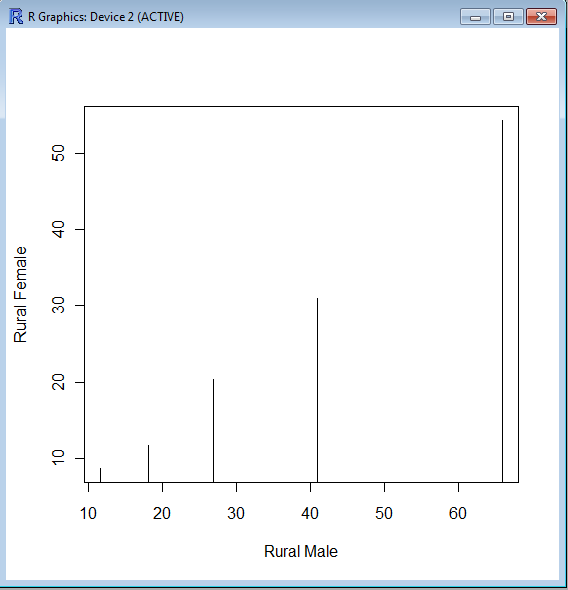
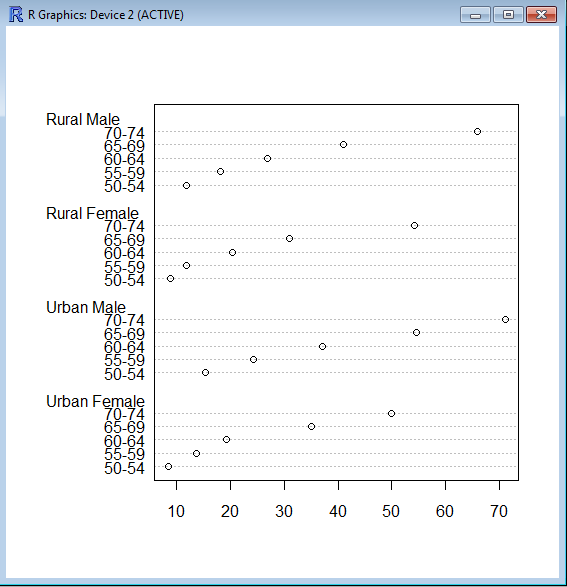
The barplot() command is used for making Bar Plots, while hist() is used for histograms. You can also use the plot() command with type=h to create histograms-The official R manual also suggests that Dot plots using dotchart () are a reasonable substitute for bar plots.
A very simple easy to understand tutorial for basic bar plots is at http://msenux.redwoods.edu/math/R/barplot.php

The difference between the three main functions that can be used for these charts are shown below-

> VADeaths
Rural Male Rural Female Urban Male Urban Female
50-54       11.7          8.7       15.4          8.4
55-59       18.1         11.7       24.3         13.6
60-64       26.9         20.3       37.0         19.3
65-69       41.0         30.9       54.6         35.1
70-74       66.0         54.3       71.1         50.0

> plot(VADeaths,type=”h”)


> dotchart(VADeaths)