The Latest GUI for R- BioR

Once more a spanking new shiny software –

Bio7 is a integrated development environment for ecological modelling based on the Rich-Client-Platformconcept of the Java IDE Eclipse. The Bio7 platform contains several perspectives which arrange several views for a special purpose useful for the development and analysis of ecological models. One special perspective bundles a feature rich GUI (Graphical User Interface) for the statistical software R.
For the bidirectional communication between Java and R the Rserve application is used (as a backend to evaluate R code and transfer data from and to Java).
The Bio7 R perspective (see figure below) is divided into a R-Shell view on the left side (conceptual the R side) and a Table view on the right side (conceptual the Java side).
Data can be imported to a spreadsheet, edited and then transferred to the R workspace. Vice versa data from R can be transferred to a sheet of the Table view and then exported e.g. to an Excel or OpenOffice file.

and

General:

Built upon Eclipse 3.6.1.

Now works with the latest Java version! (Windows version bundled with the latest JRE release).

Removed the Soil perspective (now soils can be modeled with ImageJ (float precision). Active images can be displayed in the 3D discrete view (new example available).

Removed the database perspective and the plant layer. You can now built any discrete models without any plant layer.

Removed several controls in the Control view. Added the “Custom Controls” view. In addition ported the Swing component of the Time panel to Swt.

Deleted the avi to swf converter in the ImageJ menu.

Now patterns can be saved with opened Java editor source. If this file is reopened and dragged on Bio7 the pattern is loaded, the source is compiled and the setup method (if available) is executed. In this way model files can be used for presentations ->drag, setup and run. The save actions are located in the Speadsheet view toolbar.

More options available to disable panel painting and recording of values (if not needed for speed!).

New Setup button in the toolbar of Bio7 to trigger a compiled setup method if available.

Removed the load and save pattern buttons from the toolbar of Bio7. Discrete patterns can now be stored with the available action in the spreadsheet view menu.

New P2 Update Manager available in Bio7.

Updated the Janino Compiler.

New HTML perspective added with a view which embeds the TinyMC editor.

New options to disable painting operations for the discrete panels.

New option to explicitly enable scripts at startup (for a faster startup).

Quadgrid (Hexgrid)

Only states are now available which can be created in the “Spreadsheet” view menu easily. Patterns can be stored and restored as usual but are now stored in an *.exml file.

New method to transfer the quadgrid pattern as a matrix to R.

New method to transfer the population data of all quadgrid states to R.

ImageJ:

Update to the latest version (with additional fixes).

Fixed a bug to rename the image.

Thumbnail browser can now open images recursevely(limited to 1000 pics), the magnifiyng glass can be disabled, too.

Plugins can be installed dynamically with a drag and drop operation on the ImageJ view or toolbar (as known from ImageJ).

Installed plugins now extend the plugin menu as submenus or subsubmenus (not finished yet!).

Plugins can now be created with the Java editor. New Bio7 Wizard available to create a plugin template.

Compiled Java files can be added to a *.jar file with a new available action in the Navigator view (if you rightclick on the files in the Navigator). In this way ImageJ plugins can be packaged in a *.jar.

Floweditor:

Fixed a repaint bug in the debug mode of a flow (now draws correctly the active shape in the flow).

Resize with Strg+Scrollwheel works again.

Comments with more than one line works again.

New Test action to verify connections in a flow.

Debug mode now shows all executed Shapes.

Integrated more default tests (for the verification of a regular flow).

A mouse-click now deletes colored shapes in a flow (e.g. in debug mode).

Points panel:

Integrated (dynamic) Voronoi, Delauney visualization (with area and clip to rectangle action).

Points coordinates can now be set in double precision.

Transfer of point coordinates to R now in double precision.

Bio7 Table:

New import and export of Excel 2007 OOXML.

Row headers can now be resized with the mouse device.

R:

Updated R (2.12.1) and Rserve (0.6.3) to the latest version.

New help action in the R-Shell view.

New action to display help for R specific commands in the embedded Bio7 browser (which opens automatically).

New Key actions to copy the selected variable names to the expression dialog (c=cocatenate (+), a=add (,)).

New action to transfer character or numeric vectors horizontally or vertically in an opened spread (Table view) at selection coordinates.

Empty spaces in the filepath are now allowed under Windows if Rserve is started with a system shell or the RGUI (for the tempfile select a location in the Preferences dialog which is writeable) is started.This works also for the RGUI action.

Improved the search for the “Install packages” action (option “Case Sensitive” added).

API:

New API methods available!

And:

Many fixes since the last version!


Installation

Important information:

A certain firewall software can corrupt the Bio7 *.zip file (as well as other files).
Please ensure that you have downloaded a functioning Bio7 1.5 version. In addition it is also reported that a certain antivirus software detects the bundled R software (on Windows) as malware. Often the R specific “open.exe” is detected as malware. Please use a different scanner to make sure that the software is not infected if you have any doubts. For more details see:

http://r.789695.n4.nabble.com/trojan-at-current-development-version-td3244348.html


Viva Libre Office

WordPerfect 5.1 for DOS.
Image via Wikipedia

The Document Foundation is happy to announce the release candidate of
LibreOffice 3.3.1. This release candidate is the first in a series of
frequent bugfix releases on top of our LibreOffice 3.3 product. Please
be aware that LibreOffice 3.3.1 RC1 is not yet ready for production
use, you should continue to use LibreOffice for that.

http://listarchives.documentfoundation.org/www/announce/msg00028.html

Following is the list of changes against LibreOffice 3.3:

Key changes at a glance:

* Numerous translation updates
* new mimetype icons for LibreOffice – explained here:
http://luxate.blogspot.com/2011/01/not-even-included-but-already-improved.html
* quite a few crasher fixes

Detailed change log:

* translation updates
* Removed old/unmaintained icon themes
* Fix for https://bugzilla.novell.com/show_bug.cgi?id=664516: Don’t
use a reference or the default formula string will be changed
* Install bash completion for oo* wrappers when enabled
(https://bugzilla.novell.com/show_bug.cgi?id=665402)
* Build fix: get the stlport compat workaround working for gcc 4.6.0
* Build fix: no ddraw.h or ddraw.lib in the June 2010 DirectX SDK,
removed usage
* Windows installer: padded nologobanner.bmp, new size is 102×58
* removed gd – Gaelic, ky – Kirghiz, pap – Papiamento, ti – Tigrinya,
ms – Malay, ps – Pashto, ur – Urdu. UI localization does not exist
in these languages. So it makes no sense to ship packages.
* Build fix: pass thru PYTHON, found by configure. Will be used by
filter/source/config/fragments/makefile.mk.
* Upgraded libwpd (WordPerfect filter) to 0.9.1
* Fixed BrOffice Windows start menu branding
* Removed language code ‘kid’. kid is not Koshin, but key id pseudo
language which is good for debugging UI but should no be included
in the product
* Added ca_XV and ast language/local name and description
* Fixed incorrect page number in page preview mode
(https://bugs.freedesktop.org/show_bug.cgi?id=33155). When the
window is large enough to show several ‘Page X’ strings,
the page number was not properly incremented.
* Fixed incorrect import of cell attributes from Excel
documents. When a cell with non-default formatting attribute starts
with non-first row in a column, the filter would incorrectly apply
the same format to all the cells above it if they didn’t have any
formats.
* Ubuntu: fix for lp#696527 – enable human icon theme in LibreOffice
* Fix for https://bugzilla.redhat.com/show_bug.cgi?id=673819 crash on
changing position of drawing object in header.
* Changed OpenOffice.org to LibreOffice in nsplugin
* Added Occitan dictionary
* Added Ukrainian dictionaries
* Fix window focus for langpack installation on Mac –
https://bugs.freedesktop.org/show_bug.cgi?id=33056
* Added/modified NLPsolver translations from Pootle
* Fix for https://bugzilla.novell.com/show_bug.cgi?id=655763
* Fix for RTF export crasher
(https://bugzilla.novell.com/show_bug.cgi?id=656503)
* Use LibreOffice as product name for EPS Creator header
* Parse svg ‘color’ property (fixes
https://bugs.freedesktop.org/show_bug.cgi?id=33551)
* Use double instead of float in writerfilter import
* Build fix: use PYTHON as passed through by set_soenv.in.
* Fix for https://bugs.freedesktop.org/show_bug.cgi?id=33237 remove
debug line
* Fix for https://bugs.freedesktop.org/show_bug.cgi?id=33237 – fixes
ole object import for writer (docx)
* Fix for https://bugs.freedesktop.org/show_bug.cgi?id=33249
rename OOo -> LibO on Getting Support Page
* Fix ooxml import: handle css::table::BorderLine in addition to
css::table::BorderLine2 That means that table cell properties are
correctly set on import again.
* Fix for https://bugs.freedesktop.org/show_bug.cgi?id=33258
wikihelp: Improve the check for existence of the localized help.
* Fix for https://bugs.freedesktop.org/show_bug.cgi?id=33994 – fixes
several crashes around config UNO API
* Fix for https://bugs.freedesktop.org/show_bug.cgi?id=30879
* Fix for https://bugs.freedesktop.org/show_bug.cgi?id=32872
Implementation names weren’t matching with xcu.
* Fix: don’t pushback and process a corrupt extension
* Fix: wikihelp – do not check for existence of the localized
help. In case we do not have the help installed, it is up to the
online service to decide the fallback in case a language version is
not available.
* Fix README: change su urpmi to sudo urpmi for Mandriva section
* Fix README formatting –
https://bugs.freedesktop.org/show_bug.cgi?id=32741 – using CRLF
instead of LF on WIN platform
* Fix README: word wrap at column 75 for better readability
* Build fix: KDE3 library search order
(https://bugs.freedesktop.org/show_bug.cgi?id=32797). Use LINKFLAGS
instead of STDLIBS.
* Start using technical.dic instead of oracle.dic
(https://bugs.freedesktop.org/show_bug.cgi?id=31798)
* Build fix: add explicit QRegion* for clipRegion to fix compile of
kde backend
* Cleanup: removed obsolete m_bSingleAltPress
* Remove the menu when Left Alt Key was pressed for GTK
* Fix for https://bugs.freedesktop.org/show_bug.cgi?id=33459: use
year of era in long format for zh_TW by default
* Fix wrong collation for Catalan language
* Fix for https://bugs.freedesktop.org/show_bug.cgi?id=31271 wrong
line break with “(”
* Fix for https://bugs.freedesktop.org/show_bug.cgi?id=32561 – crash
when iterating over the database types.
* Default currency for Estonia should be Euro – fixes
https://bugs.freedesktop.org/show_bug.cgi?id=33160
* Avoid a pointless GetHelpText() call in the toolbox. Fixes
https://bugs.freedesktop.org/show_bug.cgi?id=33315. GetHelpText()
can be quite heavy, see
https://bugs.freedesktop.org/show_bug.cgi?id=33088.
* Paint toolbar handle positioned properly
(https://bugs.freedesktop.org/show_bug.cgi?id=32558)
* Build fix: move cxxabi.h after stl headers to workaround gcc 4.6.0
and stlport
* Fix for https://bugs.freedesktop.org/show_bug.cgi?id=33355
manipulate also the C runtime’s environment
* Fix for CTL/Other Default Font #i25247#, #i25561#, #i48064#,
#i92341#
* RTF export crasher
(https://bugzilla.novell.com/show_bug.cgi?id=656503)
* Fixed an infinite loop in RTF exporter
* UI: translations need more space on word count dialog, made space
for it.
* Fix for https://bugzilla.novell.com/show_bug.cgi?id=660816 improve
formfield checkbox binary export (and import)

Again a BIG Thank You!

Again whats Libre Office

What does LibreOffice give you?
Writer is the word processor inside LibreOffice. Use it for everything, from dashing off a quick letter to producing an entire book with tables of contents, embedded illustrations, bibliographies and diagrams. The while-you-type auto-completion, auto-formatting and automatic spelling checking make difficult tasks easy (but are easy to disable if you prefer). Writer is powerful enough to tackle desktop publishing tasks such as creating multi-column newsletters and brochures. The only limit is your imagination.

Calc tames your numbers and helps with difficult decisions when you’re weighing the alternatives. Analyze your data with Calc and then use it to present your final output. Charts and analysis tools help bring transparency to your conclusions. A fully-integrated help system makes easier work of entering complex formulas. Add data from external databases such as SQL or Oracle, then sort and filter them to produce statistical analyses. Use the graphing functions to display large number of 2D and 3D graphics from 13 categories, including line, area, bar, pie, X-Y, and net – with the dozens of variations available, you’re sure to find one that suits your project.

Impress is the fastest and easiest way to create effective multimedia presentations. Stunning animation and sensational special effects help you convince your audience. Create presentations that look even more professional than the standard presentations you commonly see at work. Get your collegues’ and bosses’ attention by creating something a little bit different.

Draw lets you build diagrams and sketches from scratch. A picture is worth a thousand words, so why not try something simple with box and line diagrams? Or else go further and easily build dynamic 3D illustrations and special effects. It’s as simple or as powerful as you want it to be.

Base is the database front-end of the LibreOffice suite. With Base, you can seamlessly integrate your existing database structures into the other components of LibreOffice, or create an interface to use and administer your data as a stand-alone application. You can use imported and linked tables and queries from MySQL, PostgreSQL or Microsoft Access and many other data sources, or design your own with Base, to build powerful front-ends with sophisticated forms, reports and views. Support is built-in or easily addable for a very wide range of database products, notably the standardly-provided HSQL, MySQL, Adabas D, Microsoft Access and PostgreSQL.

Math is a simple equation editor that lets you lay-out and display your mathematical, chemical, electrical or scientific equations quickly in standard written notation. Even the most-complex calculations can be understandable when displayed correctly. E=mc2.

LibreOffice also comes configured with a PDF file creator, meaning you can distribute documents that you’re sure can be opened and read by users of almost any computing device or operating system.

Download LibreOffice now and try it out today.

http://www.libreoffice.org/features/


An Introduction to Data Mining-online book

I was reading David Smith’s blog http://blog.revolutionanalytics.com/

where he mentioned this interview of Norman Nie, at TDWI

http://tdwi.org/Articles/2010/11/17/R-101.aspx?Page=2

where I saw this link (its great if you want to study Data Mining btw)

http://www.kdnuggets.com/education/usa-canada.html

and I c/liked the U Toronto link

http://chem-eng.utoronto.ca/~datamining/

Best of All- I really liked this online book created by Professor S. Sayad

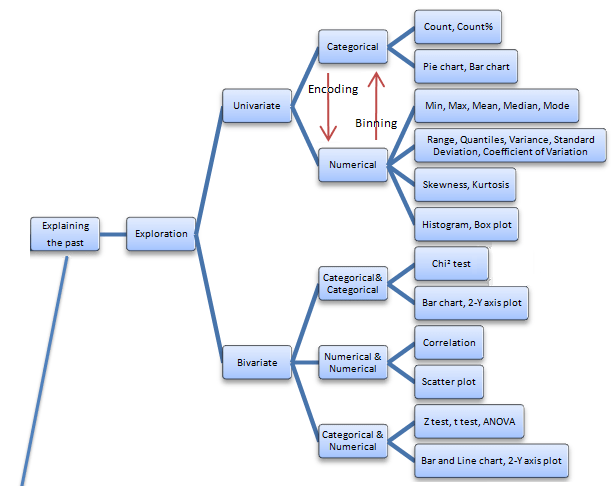
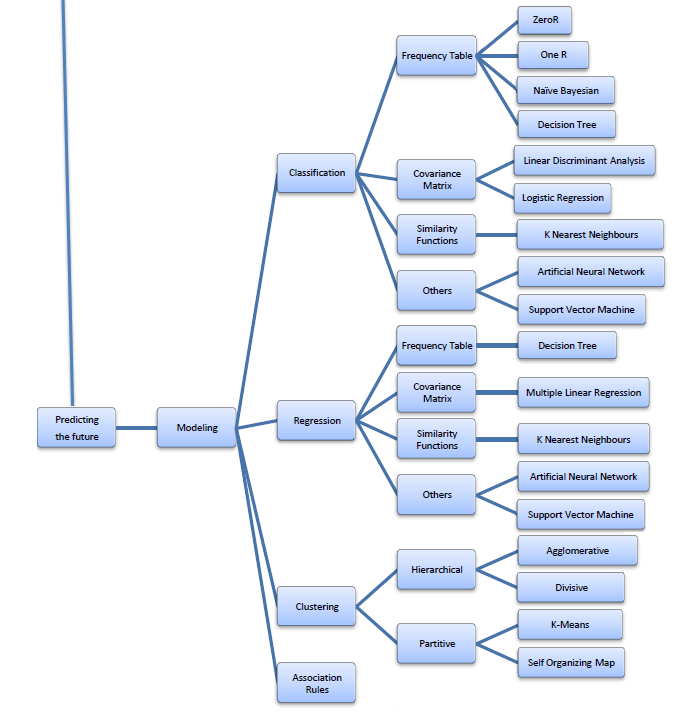
Its succinct and beautiful and describes all of the Data Mining you want to read in one Map (actually 4 images painstakingly assembled with perfection)

The best thing is- in the original map- even the sub items are click-able for specifics like Pie Chart and Stacked Column chart are not in one simple drop down like Charts- but rather by nature of the kind of variables that lead to these charts. For doing that- you would need to go to the site itself- ( see http://chem-eng.utoronto.ca/~datamining/dmc/categorical_variables.htm

vs

http://chem-eng.utoronto.ca/~datamining/dmc/categorical_numerical.htm

Again- there is no mention of the data visualization software used to create the images but I think I can take a hint from the Software Page which says software used are-

Software

See it on your own-online book (c)Professor S. Sayad

Really good DIY tutorial

http://chem-eng.utoronto.ca/~datamining/dmc/data_mining_map.htm

Great article on Notepad++ and R in R Journal


Logo for R
Image via Wikipedia


I really liked this article on Notepad++ integration with R,  I am a fan for anything like enhanced code editors and GUIs (and etc) which make R a more easier tool for the common man , and the little tech newbie.

Read it or glance through if you havent looked at the June version of R Journal, the article is on Page 62.

Using Code Editors in R

Using Enhanced Code Editors


Advantages of using enhanced code editors

1) Readability- Features like syntax coloring helps make the code more readable for documentation as well as debugging and improvement. Example functions may be colored in blue, input parameters in green, and simple default code syntax in black. Especially for lengthy programs or tweaking auto generated code by GUI, this readability comes in handy.

2) Automatic syntax error checking- Enhanced editors can prompt you if certain errors in syntax (like brackets not closed, commas misplaced)- and errors may be highlighted in color (red mostly). This helps a lot in correcting code especially if you are either new to R programming or your main focus is business insights and not just coding. Syntax debugging is thus simplified.

3) Speed of writing code- Most programmers report an increase in writing code speed when using an enhanced editor.

4) Point Breaks- You can insert breaks at certain parts of code to run some lines of code together, or debug a program. This is a big help given that default code editor makes it very cumbersome and you have to copy and paste lines of code again and again to run selectively. On an enhanced editor you can submit lines as well as paragraphs of code.

5) Auto-Completion- Auto completion enables or suggests options you to complete the syntax even when you have typed part of the function name.

Some commonly used code editors are –
Notepad++ -It supports R and also has a plugin called NPP to R.
It can be used  for a wide variety of other languages as well, and has all the features mentioned above.

Revolution R Productivity Environment (RPE)-While Revolution R has announced a new GUI to be launched in 2011- the existing enhancements to their software include a code editor called RPE.

Syntax color highlighting is already included. Code Snippets work in a fairly simply way.
Right click-
Click on Insert Code Snippet.

You can get a drop down of tasks to do- (like Analysis)
Selecting Analysis we get another list of sub-tasks (like Clustering).
Once you click on Clustering you get various options.
Like clicking clara will auto insert the code for clara clustering.

Now even if you are averse to using a GUI /or GUI creators don’t have your particular analysis you can basically type in code at an extremely fast pace.
It is useful to even experienced people who do not have to type in the entire code, but it is a boon to beginners as the parameters in function inserted by code snippet are automatically selected in multiple colors. And it can help you modify the auto generated code by your R GUI at a much faster pace.

TinnR -The most popular and a very easy to use code editor. It is available at http://www.sciviews.org/Tinn-R/
It’s disadvantage is it supports Windows operating system only.
Recommended as the beginner’s chose fore code editor.

Eclipse with R plugin http://www.walware.de/goto/statet This is recommended especially to people working with Eclipse and on Unix systems. It enables you to do most of the productivity enhancement featured in other text editors including submitting code the R session.

Gvim (http://www.vim.org/) along Vim-R-plugin2
(http://www.vim.org/scripts/script.php?script_id=2628) should be
cited. The Vim-R-plugin developer recently added windows support to a
lean cross-platform package that works well. It can be suited as a niche text editor to people who like less features in the software. It is not as good as Eclipse or Notepad++ but is probably the simplest to use.

Customizing your R software startup

Customizing your R software startup helps you do the following.
Thus it helps you to boot up R faster.
It automatically loads packages that you use regularly (like a R GUI -Deducer, Rattle or R Commander), set a CRAN mirror that you mostly use or is nearest for downloading new packages, and set some optional parameters.

Everytime you start R Instead of doing this , loading same R packages, setting a CRAN mirror,setting some new functions- the user needs to do this just once by customizing the R Profile SITE file.

This is done by editing the $R_HOME/etc/Renviron file for globally setting a default or the .Renviron file that is created in your home directory for a shared system.

There are two special functions you can customize in these files.
.First( ) will be run at the start of the R session and
.Last( ) will be run when the R session is shutting down.

When R starts up, it loads the .Rprofile file in your home directory and executes the .First() function.

Where is the R Profile file?
It is located in the \etc folder of your R folder- folder you installed R in.
In Windows the folder will be of the format -”C:\Program Files\R\R-x.ab.c\etc”
where x.ab.c will be the R version number (like 2.11.1)
Example
.First <- function(){
library(rattle)
rattle()
cat(“\nHello World”, date(), “\n”)
}

will automatically start the Rattle GUI for data mining and print Hello World with the date in your session.

You can also modify the Rcmd_environ file in the same \etc folder if you are particular on your settings

## Default browser
R_BROWSER=${R_BROWSER-‘C:\Documents and Settings\abc\Local Settings\Application Data\Google\Chrome\Application\chrome.exe} ## Default editor EDITOR=${EDITOR-${notepad++}}

will change the default Web browser to Chrome and the default editor to Notepad++ which is an enhanced Code Editor.