Using Code Editors in R

Using Enhanced Code Editors


Advantages of using enhanced code editors

1) Readability- Features like syntax coloring helps make the code more readable for documentation as well as debugging and improvement. Example functions may be colored in blue, input parameters in green, and simple default code syntax in black. Especially for lengthy programs or tweaking auto generated code by GUI, this readability comes in handy.

2) Automatic syntax error checking- Enhanced editors can prompt you if certain errors in syntax (like brackets not closed, commas misplaced)- and errors may be highlighted in color (red mostly). This helps a lot in correcting code especially if you are either new to R programming or your main focus is business insights and not just coding. Syntax debugging is thus simplified.

3) Speed of writing code- Most programmers report an increase in writing code speed when using an enhanced editor.

4) Point Breaks- You can insert breaks at certain parts of code to run some lines of code together, or debug a program. This is a big help given that default code editor makes it very cumbersome and you have to copy and paste lines of code again and again to run selectively. On an enhanced editor you can submit lines as well as paragraphs of code.

5) Auto-Completion- Auto completion enables or suggests options you to complete the syntax even when you have typed part of the function name.

Some commonly used code editors are –
Notepad++ -It supports R and also has a plugin called NPP to R.
It can be used  for a wide variety of other languages as well, and has all the features mentioned above.

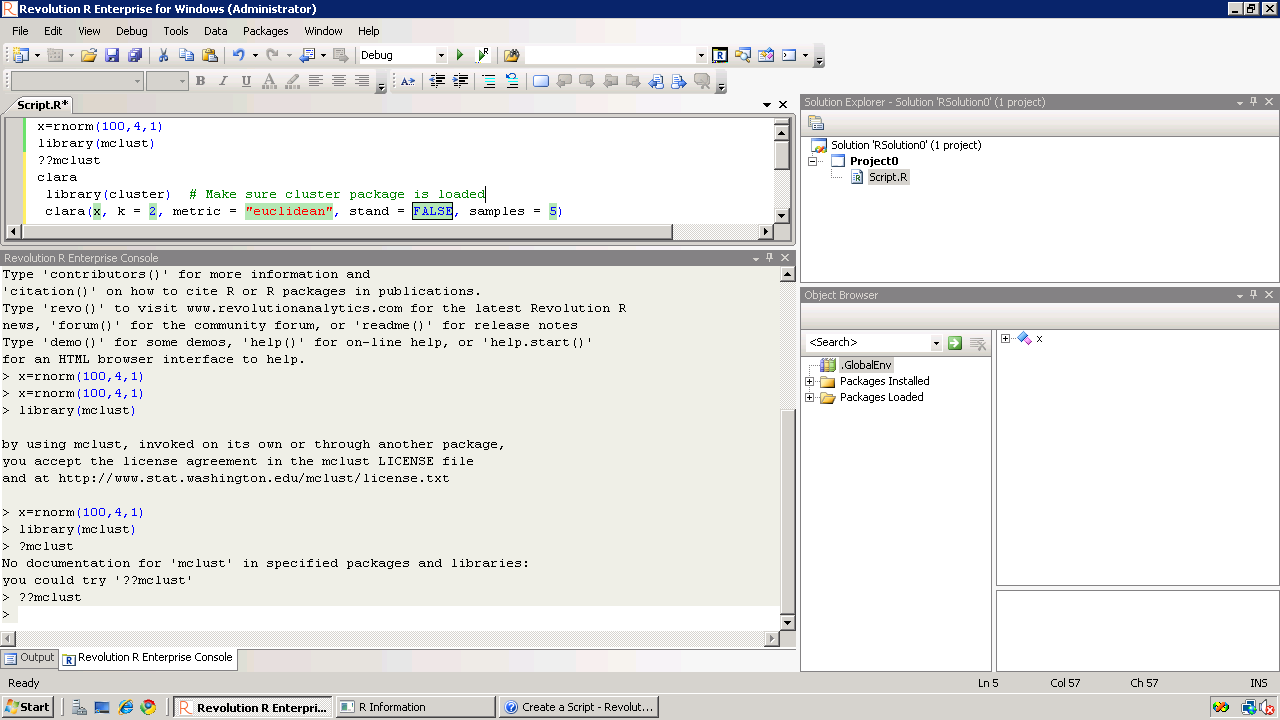
Revolution R Productivity Environment (RPE)-While Revolution R has announced a new GUI to be launched in 2011- the existing enhancements to their software include a code editor called RPE.

Syntax color highlighting is already included. Code Snippets work in a fairly simply way.
Right click-
Click on Insert Code Snippet.

You can get a drop down of tasks to do- (like Analysis)
Selecting Analysis we get another list of sub-tasks (like Clustering).
Once you click on Clustering you get various options.
Like clicking clara will auto insert the code for clara clustering.

Now even if you are averse to using a GUI /or GUI creators don’t have your particular analysis you can basically type in code at an extremely fast pace.
It is useful to even experienced people who do not have to type in the entire code, but it is a boon to beginners as the parameters in function inserted by code snippet are automatically selected in multiple colors. And it can help you modify the auto generated code by your R GUI at a much faster pace.

TinnR -The most popular and a very easy to use code editor. It is available at http://www.sciviews.org/Tinn-R/
It’s disadvantage is it supports Windows operating system only.
Recommended as the beginner’s chose fore code editor.

Eclipse with R plugin http://www.walware.de/goto/statet This is recommended especially to people working with Eclipse and on Unix systems. It enables you to do most of the productivity enhancement featured in other text editors including submitting code the R session.

Gvim (http://www.vim.org/) along Vim-R-plugin2
(http://www.vim.org/scripts/script.php?script_id=2628) should be
cited. The Vim-R-plugin developer recently added windows support to a
lean cross-platform package that works well. It can be suited as a niche text editor to people who like less features in the software. It is not as good as Eclipse or Notepad++ but is probably the simplest to use.

Customizing your R software startup

Customizing your R software startup helps you do the following.
Thus it helps you to boot up R faster.
It automatically loads packages that you use regularly (like a R GUI -Deducer, Rattle or R Commander), set a CRAN mirror that you mostly use or is nearest for downloading new packages, and set some optional parameters.
Everytime you start R Instead of doing this , loading same R packages, setting a CRAN mirror,setting some new functions- the user needs to do this just once by customizing the R Profile SITE file.

This is done by editing the $R_HOME/etc/Renviron file for globally setting a default or the .Renviron file that is created in your home directory for a shared system.

There are two special functions you can customize in these files.
.First( ) will be run at the start of the R session and
.Last( ) will be run when the R session is shutting down.

When R starts up, it loads the .Rprofile file in your home directory and executes the .First() function.

Where is the R Profile file?
It is located in the \etc folder of your R folder- folder you installed R in.
In Windows the folder will be of the format -”C:\Program Files\R\R-x.ab.c\etc”
where x.ab.c will be the R version number (like 2.11.1)
Example
.First <- function(){
library(rattle)
rattle()
cat(“\nHello World”, date(), “\n”)
}

will automatically start the Rattle GUI for data mining and print Hello World with the date in your session.

You can also modify the Rcmd_environ file in the same \etc folder if you are particular on your settings

## Default browser
R_BROWSER=${R_BROWSER-‘C:\Documents and Settings\abc\Local Settings\Application Data\Google\Chrome\Application\chrome.exe} ## Default editor EDITOR=${EDITOR-${notepad++}}

will change the default Web browser to Chrome and the default editor to Notepad++ which is an enhanced Code Editor.

Google AppInventor in Action

A GUI based SDK for making Apps for Mobiles (Android)- that you can then put in the Android Marketplace.

Watch a 60 sec video on that!

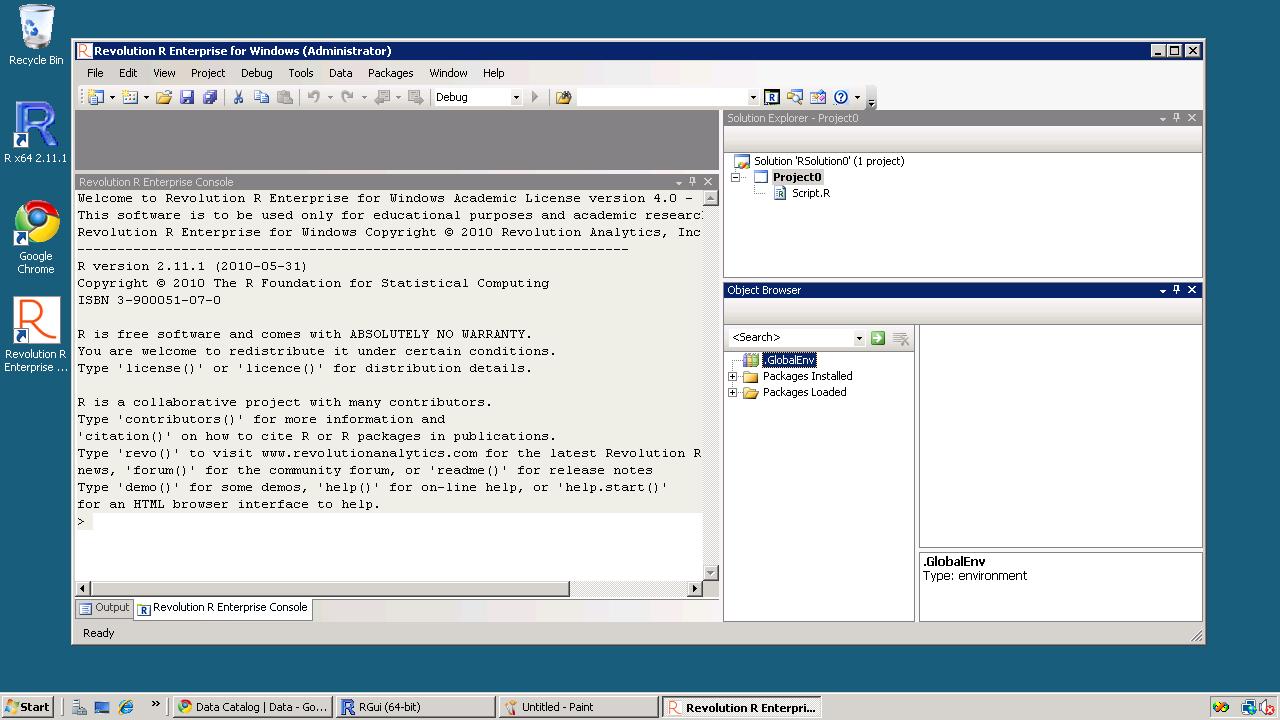
Using Code Snippets in Revolution R

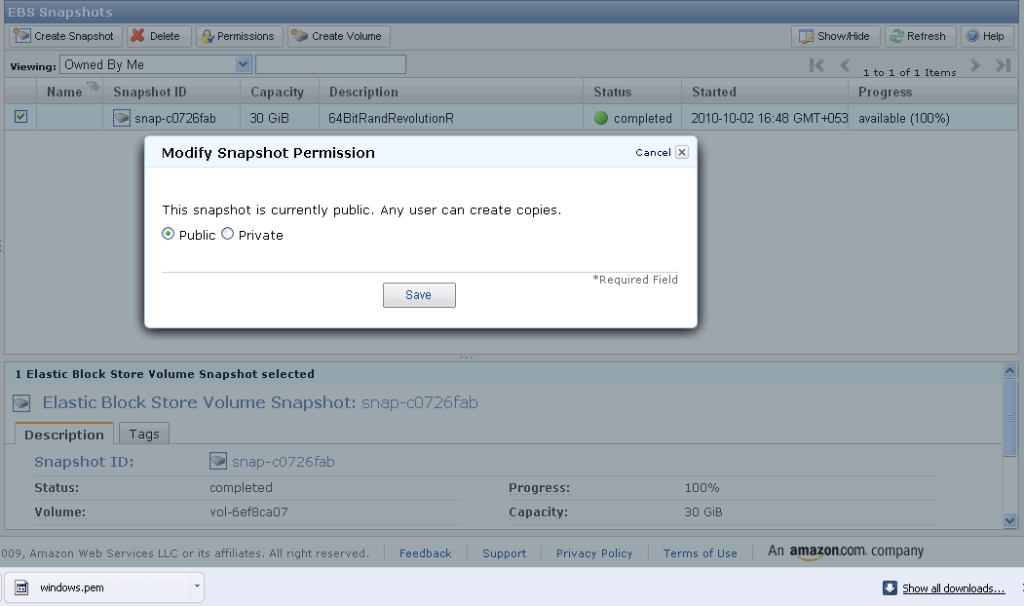
So I am still testing Revo R on the 64 bit AMI i created on the weekend and I really like the code snippets feature in Revolution R.

Code Snippets work in a fairly simply way.

Right click– Click on Insert Code Snippet.

You can get a drop down of tasks to do- (like Analysis) Selecting Analysis we get another list of tasks (like Clustering).

Once you click on Clustering you get various options. Like clicking clara will auto insert the code

Now even if you are averse to using a GUI /or GUI creators don’t have your particular analysis you can basically type in code at an extremely fast pace.

It is useful to people who do not have to type in the entire code, but it is a boon to beginners as the parameters in function inserted by code snippet are automatically selected in multiple colors.

Also separately if are typing code for a function and hover, the various parameters for that particular function are shown.

Quite possibly the fastest way to write R code- and it is un matched by other code editors I am testing including Vim,Notepad++,Eclipse R etc.

The RPE (R Productivity Environment for windows- horrible bureaucratic name is the only flaw here) thus helps as it is quite thoughtfully designed. Interestingly they even have a record macro feature – which I am quite unsure of , but looks like automating some tasks. That’s next 🙂

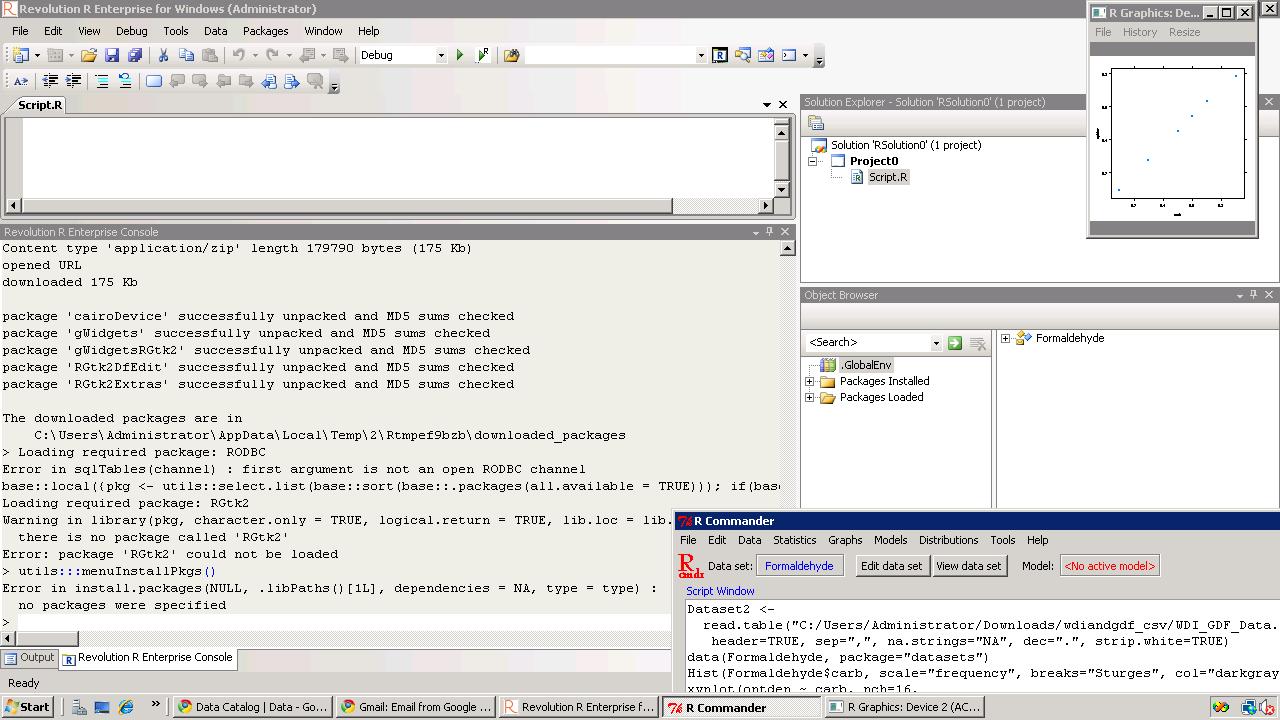
See screenshot –

It would be quite nice to see the new Revo R GUI if it becomes available if it is equally intuitively designed considering it now has the founders of SPSS and one founder of R* as it’s members-it should be a keenly anticipated product. again Revolution could also try creating a Paid Amazon AMI and try renting the software by the hour at least as technology demonstrator as the big analytics world seems unaware of the work they have been up to.

without getting much noise on how much the other founder of R loves Revo 😉 )

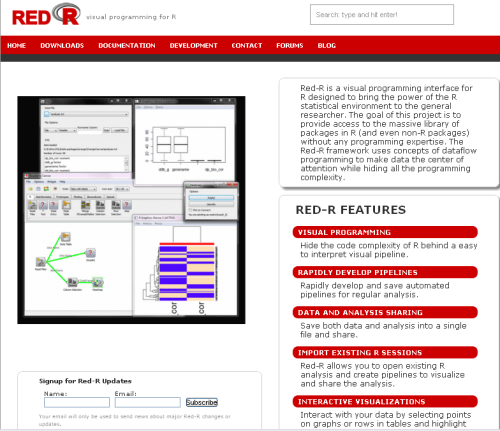
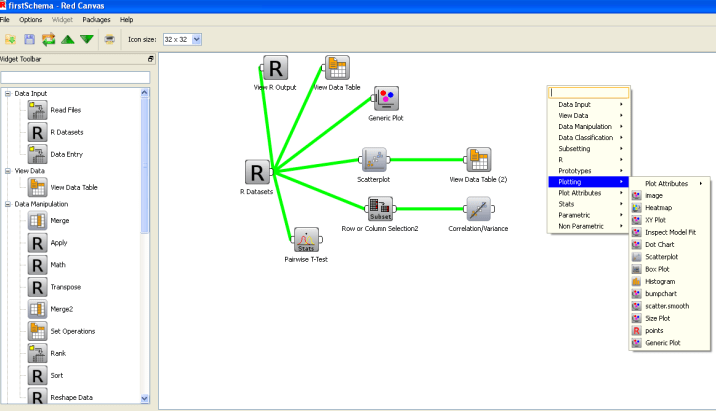
Red R 1.8- Pretty GUI

Red R 1.8 has been compiled and is available for download.

If you have seen Red R, well it resembles software like Enterprise Miner or Rapid Miner in the visual sense as it basically has a work-flow style of showing and setting up data analysis.

I played a bit with it, and this version is a definite improvement over the last ones.- Here is one more really groovy GUI for R- and it’s quite professionally done.

And a Youtube tutorial as well

Take a bow- Kyle and Anup- nice coding indeed.


IPSUR – A Free R Textbook

Here is a free R textbook called IPSUR-

http://ipsur.r-forge.r-project.org/book/index.php

IPSUR stands for Introduction to Probability and Statistics Using R, ISBN: 978-0-557-24979-4, which is a textbook written for an undergraduate course in probability and statistics. The approximate prerequisites are two or three semesters of calculus and some linear algebra in a few places. Attendees of the class include mathematics, engineering, and computer science majors.

IPSUR is FREE, in the GNU sense of the word. Hard copies are available for purchase here from Lulu and will be available (coming soon) from the other standard online retailers worldwide. The price of the book is exactly the manufacturing cost plus the retailers’ markup. You may be able to get it even cheaper by downloading an electronic copy and printing it yourself, but if you elect this route then be sure to get the publisher-quality PDF from theDownloads page. And double check the price. It was cheaper for my students to buy a perfect-bound paperback from Lulu and have it shipped to their door than it was to upload the PDF to Fed-Ex Kinkos and Xerox a coil-bound copy (and on top of that go pick it up at the store).

If you are going to buy from anywhere other than Lulu then be sure to check the time-stamp on the copyright page. There is a 6 to 8 week delay from Lulu to Amazon and you may not be getting the absolute latest version available.

Refer to the Installation page for instructions to install an electronic copy of IPSUR on your personal computer. See the Feedback page for guidance about questions or comments you may have about IPSUR.

Also see http://ipsur.r-forge.r-project.org/rcmdrplugin/index.php for the R Cmdr Plugin

This plugin for the R Commander accompanies the text Introduction to Probability and Statistics Using R by G. Jay Kerns. The plugin contributes functions unique to the book as well as specific configuration and functionality to R Commander, the pioneering work by John Fox of McMaster University.

RcmdrPlugin.IPSUR’s primary goal is to provide a user-friendly graphical user interface (GUI) to the open-source and freely available R statistical computing environment. RcmdrPlugin.IPSUR is equipped to handle many of the statistical analyses and graphical displays usually encountered by upper division undergraduate mathematics, statistics, and engineering majors. Available features are comparable to many expensive commercial packages such as Minitab, SPSS, and JMP-IN.

Since the audience of RcmdrPlugin.IPSUR is slightly different than Rcmdr’s, certain functionality has been added and selected error-checks have been disabled to permit the student to explore alternative regions of the statistical landscape. The resulting benefit of increased flexibility is balanced by somewhat increased vulnerability to syntax errors and misuse; the instructor should keep this and the academic audience in mind when usingRcmdrPlugin.IPSUR in the classroom