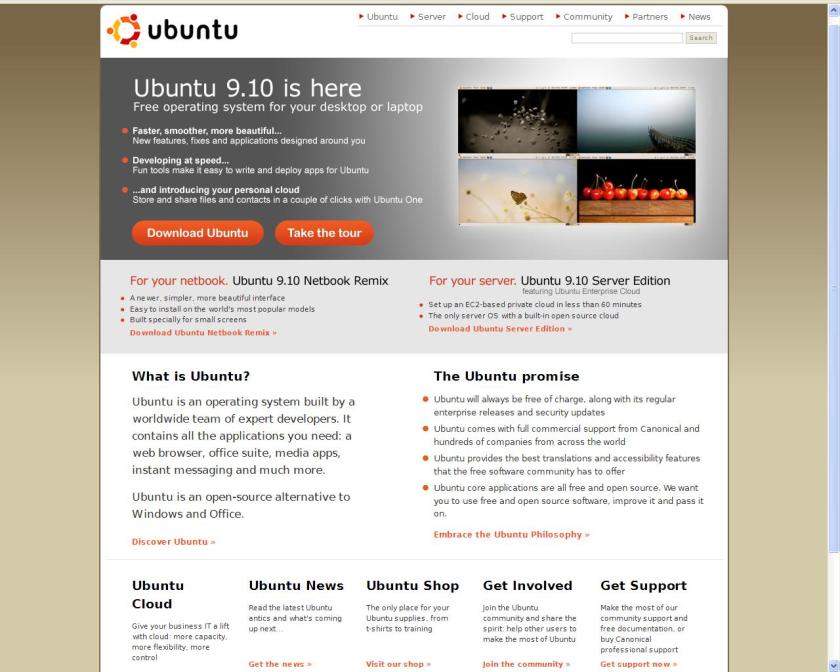
Here is the newest kick a** OS in town, and it’s called Ubuntu Nine One
Including personal cloud computing os like features, with grateful inputs from tech boys at G, A and Cannonical-
See/ Explore the Cloud Features here-

Here is the newest kick a** OS in town, and it’s called Ubuntu Nine One
Including personal cloud computing os like features, with grateful inputs from tech boys at G, A and Cannonical-
See/ Explore the Cloud Features here-
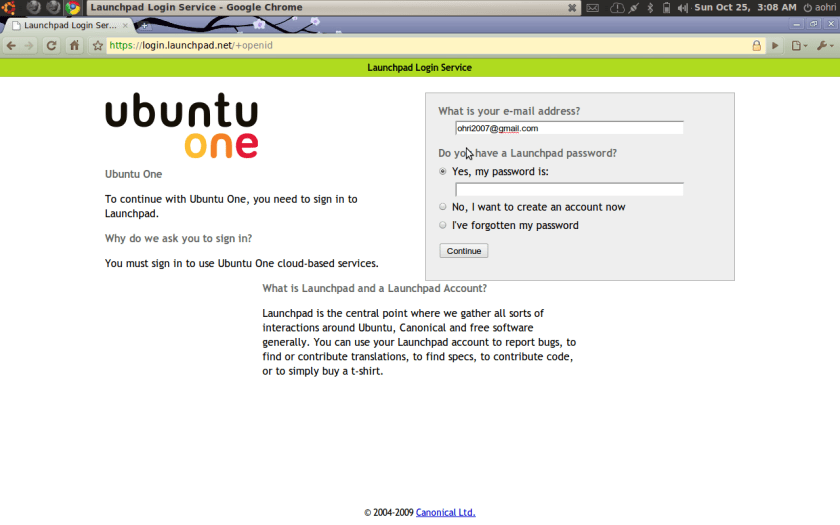
see screenshot for cloud OS services in latest version of Ubuntu tobe launched in 5 days at http://www.ubuntu.com
( I am using the 9.10 latest beta since I figured 5 days earlier beta should be okay)
The Cloud OS properties are using browser and are called Ubuntu One
The browser used is Google Chrome.
Nice one, stanford dropouts. Really nice!
Note the line launchpad based services and uses secure id to ensure a connection as well as collect data for analysis as well
as real estate for possible advertisements.
Ball in Uncle Billy ‘s court now.
Note-The icon had some issues with opening more than one session parallely and showed edit preferences. So it could be a Google Joke as well
Easter Egg with an April variation. LOL
I am just about testing the Karmic Koala which is due for launch next week. There is significant amount of Browser Based Operating System in it- it seems like a Cloud OS and Firefox have been integrated. See the following screenshots-
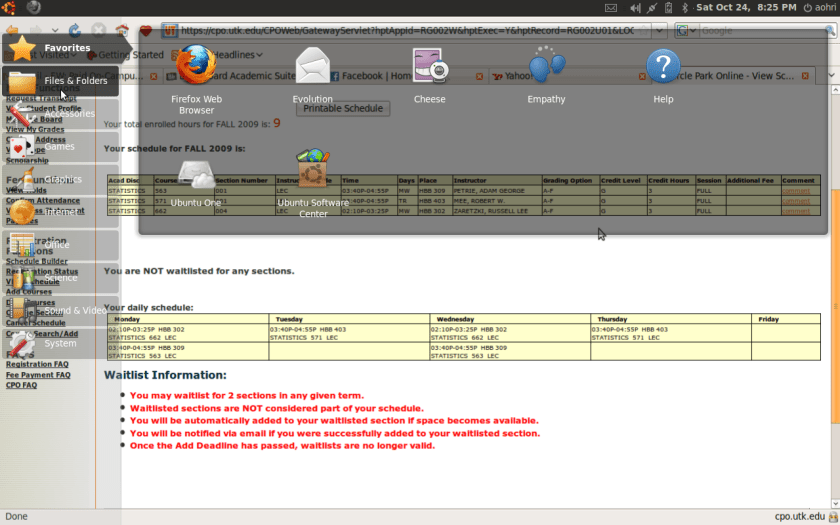
Note the ability to send email from the toolbar itself- Also the system speeded up considerably after the upgrade was installed. The striking change was in design and folder structure (it seems that they analyzed the usage data in Canonical to decide what design feature to keep and what not to keep)
Here are more views, and yes the Website http://www.ubuntu.com just went for an upgrade maintenance to cope with next week’s heavy rush or downloading.
Caveat- this is just the beta version but 5 days before launch beta version generally stay faithful to design changes.
Visit http://www.ubuntu.com for a better look- I believe dual boot Windows 7 and Koala are supported that helps you with
trying Ubuntu for fun and Windows for your original work.
Windows 7 was launched this week. Karmic Koala ( or Linux Ubuntu 9.10) is being launched next week.
No wonder Microsoft refused to recognize the upgrade revenue in it’s books and is applying conservative accounting for
projecting Windows 7 revenue
( given the Windows Vista failure to launch- 1 failure in about 30 years of successful product launches
Ah Karma

An excellent page on how you can do cloud computing without making Bill Gates richer
http://www.ubuntu.com/products/whatisubuntu/serveredition/cloud/videos
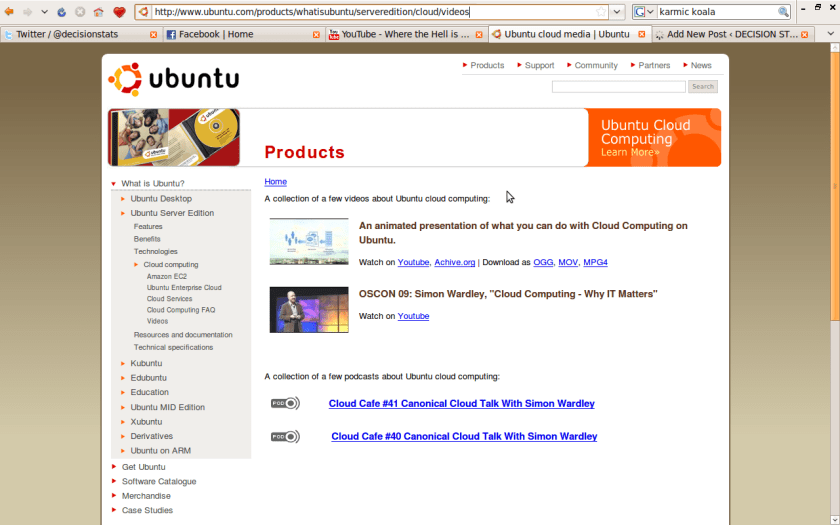
Podcasts and videos are better than white papers isnt it 🙂
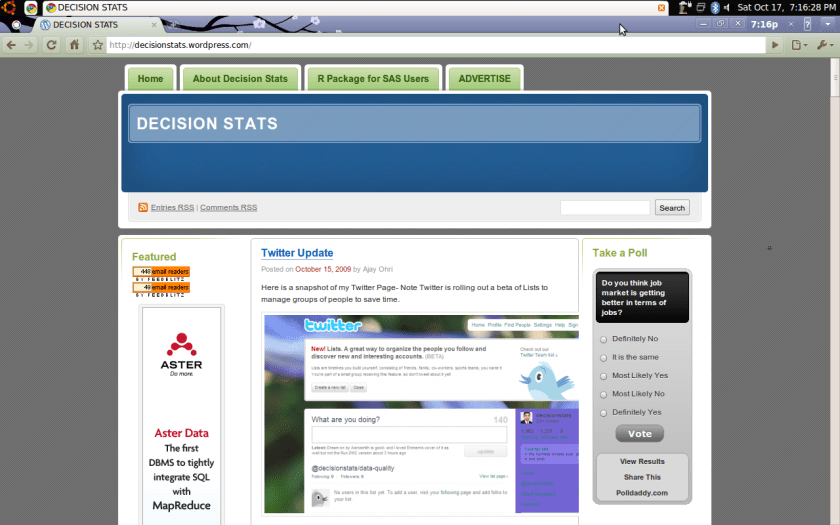
Here is a preview of the “unstable” version ( quite stable actually but Google has a sense of humour that I am using on my Ubuntu Linux
Some Features-
1) Noticeably faster browsing. I mean faster browsing and loading of images.
2) Still some trouble with Adobe plugins and Facebook games
3) Cool customized themes (see below)
4) Note the time IN THE BROWSER
5) Quite easy and stable to use with the most visited sites and the default search with suggestions within address bar
So I finally gave in, said Goodbye to my Windows with it’s virus warnings, viruses, anti viruses and security updates and got an Ubuntu.
It is like learning to speak a new language at the age of >30.
Here are some tips for configuring Internet on Ubuntu and Configuring R on Ubuntu
Using R from Ubuntu
Finding All packages
Go to Applications -Accessories-Terminal
Type the following
$apt-cache search r-cran-
To install any package simply
Type
sudo apt-get install r-cran-rcmdr r-cran-xml

After this to get other packages not listed here, invoke R by typing R at the prompt
Load installed packages by Command
>library(packagename)
Configuring Internet (specific to Indian Broadband) on an Ubuntu Laptop
Connect the Internet Wire and Switch on the ADSL modem
Go to Applications -Accesories-Terminal
Type the following at Terminal ( Note the $ sign represents Terminal- so type only ifconfig in following command)
$ ifconfig
Check the IP address from this value ( among a big dump of stuff you get by typing ifconfig)
inet addr:XXX.XX.XX.XX
Go to System- Administration- Network
Click Wired Connection- Unlock ( Use the admin password given to you- same as your machine login password)
Select Wired Connection -Properties
Configuration to Automatic Configuration (DHCP)
Go to Host
Select username-laptop Properties
Change Ip address to one gotten above
Close
(To be continued)
For Enthusiastic Beginners in Ubuntu – Note I use the Ubuntu Long Term version 8.10. The latest version is 9.04 but it is not a Long Term Version Yet. Also recommended is the Cannonical Shop for Ubuntu Merchandise (see a free screenshot in the post)