SAS and Python Together

A software called saspy helps SAS and Python work together

https://blogs.sas.com/content/sasdummy/2017/04/08/python-to-sas-saspy/

 Python coders can now bring the power of SAS into their Python scripts. The project is SASPy, and it’s available on the SAS Software GitHub. It works with SAS 9.4 and higher, and requires Python 3.x.
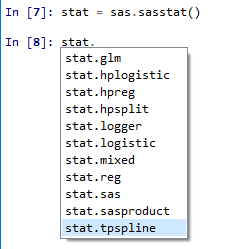
SAS/STAT object in SASPy


and its available at Github

https://github.com/sassoftware/saspy

A Python interface to MVA SAS

This module allows a python process to connect to SAS 9.4 and run SAS code, generated by the supplied object and methods or explicitly user written, and returns results as text, HTML5 documents (via SAS ODS), or as Pandas Data Frames. It supports running analytics and returning the resulting graphics and result data. It can convert between SAS Data Sets and Pandas Data Frames. It has multiple access methods which allow it to connect to local or remote Linux SAS, IOM SAS on Windows or Linux (Including Grid Manager), and local PC SAS. It can run w/in Jupyter Notebooks, in line mode python or in python batch scripts. It is expected that the user community can and will contribute enhancements.


Clearly SAS has made tremendous progress in reaching out to the open source community from releasing the free SAS University Edition to latest products like SAS Viya (https://www.sas.com/en_in/software/viya.html )

With SAS Viya, it’s now possible to integrate all elements needed to
build and deploy analytics – whether they are defined in SAS, written
with other programming languages like Python, Java, R or Lua, or
called from public REST APIs.

https://www.sas.com/content/dam/SAS/en_us/doc/overviewbrochure/sas-viya-108233.pdf

But is too little too late for SAS or is it the other way around for R, with Python usage increasing rapidly and R’s much vaunted libraries ported with ease, much better documentation and enterprise customer support in SAS and Python than in R.

As they say, time will tell? Meanwhile the data science and big data market is booming and there  seems enough for all to share slices of market share
Sentiment Manipulation using fake entities in social media

Some examples of sentiment manipulation are

  1. Reviews (at Amazon for Books and Rotten Tomatoes)- By writing a few bad reviews early on, the fake reviewer can choke sales. This is similar to the fake facebook page to give Bad reviews to Black Panther recently ( see https://www.bleedingcool.com/2018/02/01/black-panther-bad-rotten-tomatoes-reviews/ and http://www.independent.co.uk/arts-entertainment/films/news/black-panther-racism-trolls-fake-news-twitter-race-attacks-whites-assaulted-film-movie-screenings-a8215226.html)
  2. Sustained sentiment manipulation by Twitter tweets and Facebook groups. Since all social media depend on email for authentication and since the email providers rarely share IP address login information with social media networks, this enables trolls to create a few email addresses every hour followed by few social media accounts every hour. Tor and One Touch VPN are examples of IP address masking
  3. Network effects- people tend to infer that social media accounts having larger number of followers or a retweet having larger retweets is credible compared to smaller accounts. This is thus a ripe area for deception

(to be continued-)

Python for R Users will be translated in Chinese

I have now written three books in data science out of which two books will now be  translated in Chinese. Thanks for the love, Chinese people.

Respect and hugs.

First book in Chinese is here

https://decisionstats.com/2018/02/06/r-for-business-analytics-available-in-chinese/

Third book available here https://www.amazon.com/Python-Users-Data-Science-Approach/dp/1119126762 will  now translated to Chinese too

We are pleased to report a Global Rights Department license for the following title:

Author:, Ajay Ohri
Title: Python for R Users: A Data Science Approach/1
ISBN/PL: 9781119126768/I

Here are some details of the deal:

Rights Licensed: Translation/Simplified Chinese
Licensee: Beijing Huazhang Graphics & Information Co., Ltd., CHINA

Web-url: www.hzbook.com

Projected Publication/release/offer date: JANUARY 24, 2020.
Customer List Price: 59 RMB

R for Business Analytics available in Chinese

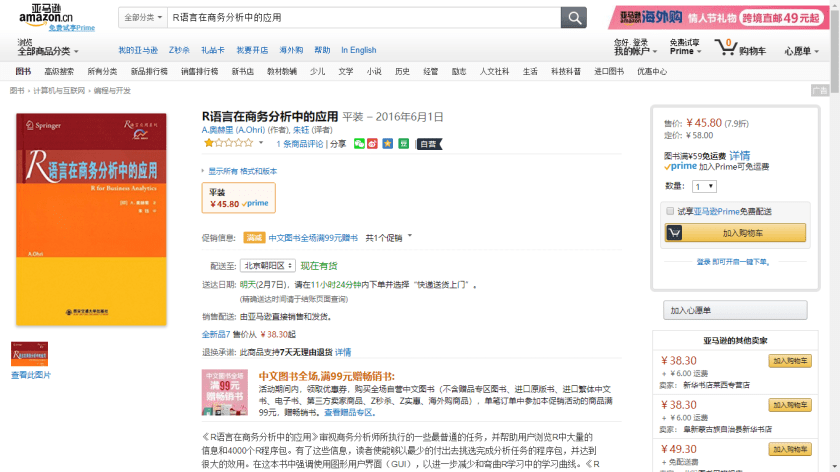
My first book R for Business Analytics is available in Chinese

https://www.amazon.cn/dp/B01HEJWWKU/ref=sr_1_1?ie=UTF8&qid=1517040434&sr=8-1&keywords=R%E8%AF%AD%E8%A8%80%E5%9C%A8%E5%95%86%E5%8A%A1%E5%88%86%E6%9E%90%E4%B8%AD%E7%9A%84%E5%BA%94%E7%94%A8

the Chinese edition had been published in January 2016 with the list price of RMB 58.00, first printing of 2,000 copies.

Working with Cloudera’s VM and Python and R

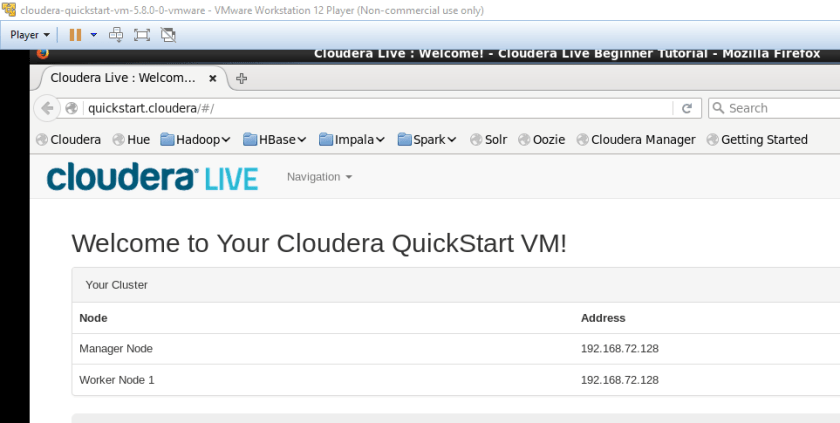
  1. Download Cloudera VM from https://www.cloudera.com/downloads/quickstart_vms/5-12.html
  2. Boot it up using VMware using instructions from  https://community.cloudera.com/t5/Hadoop-101-Training-Quickstart/How-to-setup-Cloudera-Quickstart-Virtual-Machine/ta-p/35056 and  (after download from  https://my.vmware.com/en/web/vmware/free#desktop_end_user_computing/vmware_workstation_player/12_0)
    1. 1

      Select File > Open.

      2

      In the file selection window, find and select the virtual machine package or configuration file for the virtual machine to open.

      Virtual machine package files have the extension .vmwarevm. Virtual machine configuration files have the extension .vmx. You can view a file’s extension by selecting File > Get info.

      3

      Click the Open button.

      VMware opens the virtual machine and powers it on.

  3. Download putty from (seriously dude) https://www.chiark.greenend.org.uk/~sgtatham/putty/latest.html
  4. login to Cloudera VM using Putty as followScreenshot 2018-01-02 12.06.42IP address for connecting 192.168.72.128
    1. Username and Password – cloudera
  5. Install R using – sudo yum install R https://cran.r-project.org/bin/linux/redhat/READMEscreenshot-2018-01-02-12-04-35.png
  6. For Python see latest version at http://repo.continuum.io/archive/ Screenshot 2018-01-02 12.24.13
  7. cd /opt
  8. sudo wget https://repo.continuum.io/archive/Anaconda3-5.0.1-Linux-x86_64.sh
  9. bash Anaconda3-5.0.1-Linux-x86_64.sh
  10. Accept all conditions!
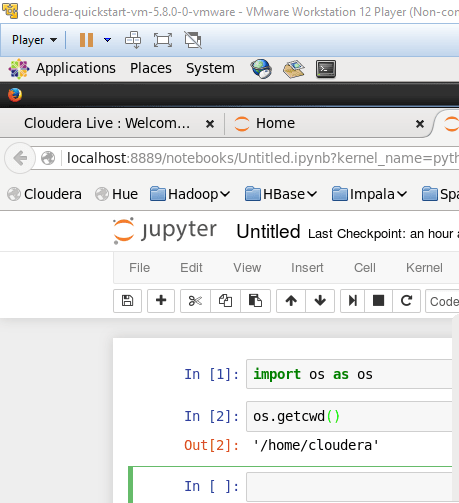
  11. type jupyter notebook to launch Python in Notebook screenshot-2018-01-02-14-11-13.png
  12. For RStudio
    1. See download link https://download1.rstudio.org/rstudio-1.1.383-x86_64.rpm from https://www.rstudio.com/products/rstudio/download/#download
    2.  sudo wget https://download1.rstudio.org/rstudio-1.1.383-x86_64.rpm
    3. sudo bash
    4. yum install rstudio-1.1.383-x86_64.rpm
  13. For RStudio Server (better alternative since RStudio didnt work above)
    1. instructions from https://www.rstudio.com/products/rstudio/download-server/ 
    2. $ wget https://download2.rstudio.org/rstudio-server-rhel-1.1.383-x86_64.rpm
      $ sudo yum install --nogpgcheck rstudio-server-rhel-1.1.383-x86_64.rpm
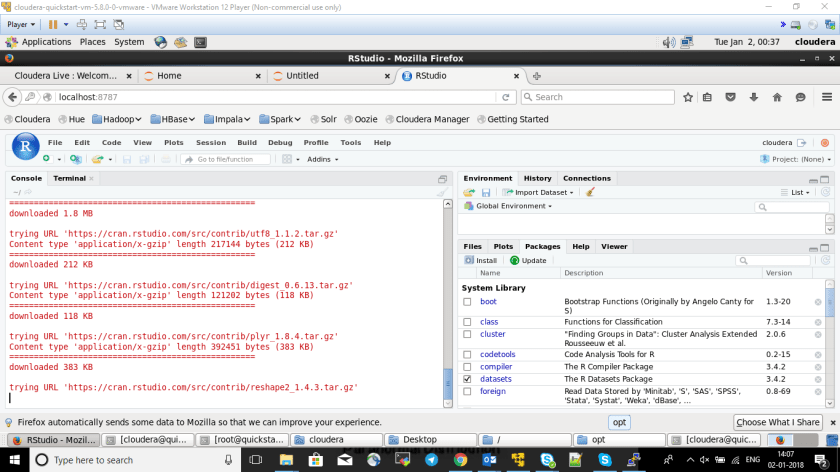
    3. Open this http://localhost:8787/ in browser in VM and use cloudera cloudera as username and password
    4. Install packages as needed 🙂
    5. To check rstudio sessions type this in command line

sudo rstudio-server active-sessions 

Screenshot 2018-01-02 14.07.32

Hat tip – http://linuxpitstop.com/install-anaconda-miniconda-conda-on-ubuntu-centos-linux/

https://www.vultr.com/docs/how-to-install-rstudio-server-on-centos-7

https://support.rstudio.com/hc/en-us/articles/200532327-Managing-the-Server

TO BE CONTINUED

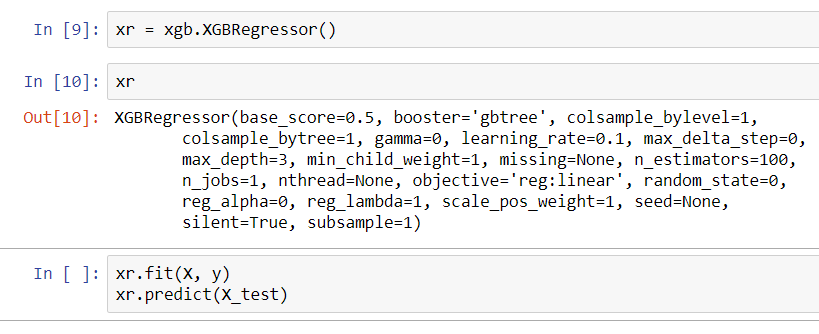
Installing xgboost in Windows 10 for Python

Install dependencies

!pip install numpy scipy scikit-learn pandas

!pip install deap update_checker tqdm stopit

Install xgboost

C:\Users\KOGENTIX>git clone –recursive https://github.com/dmlc/xgboost

Download DLL from http://www.picnet.com.au/blogs/guido/post/2016/09/22/xgboost-windows-x64-binaries-for-download/


and put it in xgboost/python-package folder

C:\Users\KOGENTIX\xgboost>cd python-package

C:\Users\KOGENTIX\xgboost\python-package

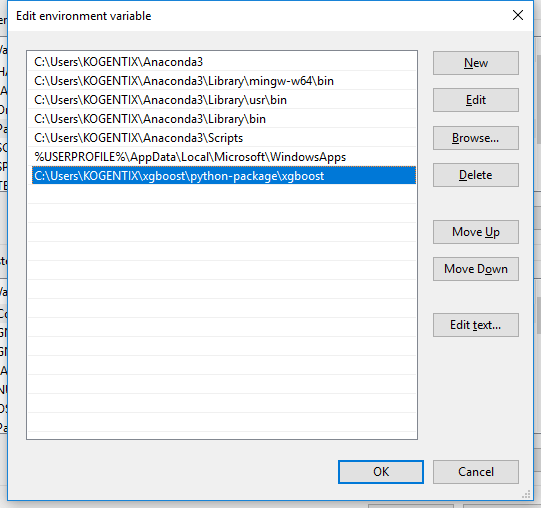
Change Environment Variables so it finds xgboost dll